How to Maintain Wireless Presentation Systems
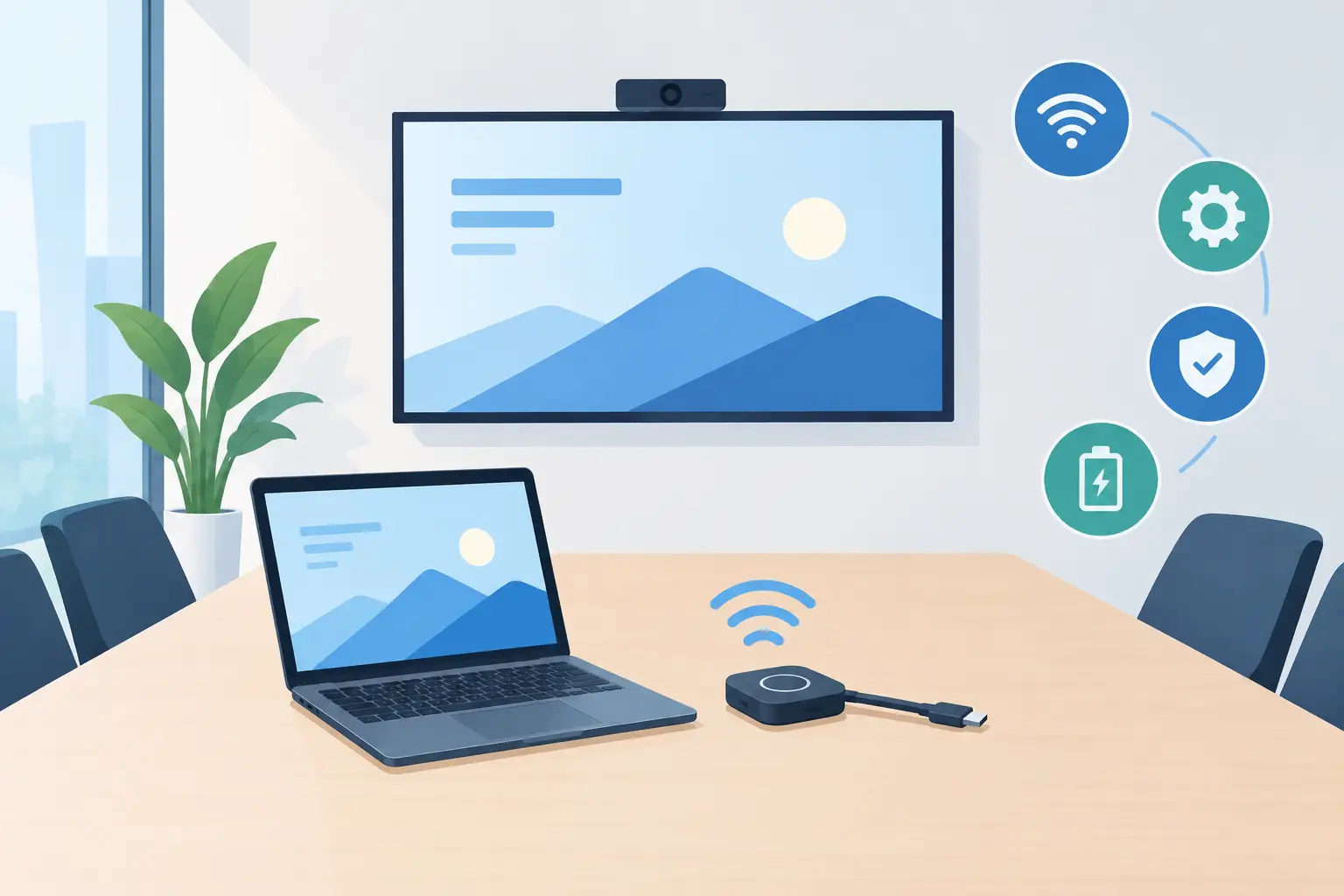
A wireless presentation system can appear to be working normally until a boardroom meeting, lecture, or customer demonstration exposes a weak signal, expired certificate, incompatible laptop update, or projector fault. Knowing how to maintain wireless presentation systems means treating the wireless gateway, network, display equipment, and room environment as one serviceable AV installation - not as separate devices.
For distributors, integrators, and AV service teams, planned maintenance reduces emergency callouts and helps protect service margins. The objective is straightforward: keep presentation connections predictable, image quality consistent, and replacement parts available before a failure affects the end user.
Start With a System Baseline
Every installed room should have a current record of its wireless presentation hardware, display or projector model, firmware version, network settings, input path, and physical location. Include the wireless receiver or collaboration gateway, transmitters or dongles, control processor, switch ports, access points, projector, cables, and power supplies.
This baseline is the fastest way to diagnose a future problem. If a user reports intermittent casting after a network change, the technician should not need to identify the receiver model, determine its supported Wi-Fi band, or trace the HDMI path from scratch. A clear room record also prevents compatibility errors when replacing accessories or projectors across a mixed fleet.
Document normal performance during commissioning. Record typical connection time, supported operating systems, expected output resolution, audio behavior, and signal strength at common seating positions. These details make it easier to distinguish a genuine equipment failure from a user device limitation.
Maintain the Network First
Most wireless presentation complaints are network complaints in another form. A receiver may be healthy, but users can still experience failed connections, delayed screen sharing, or poor video playback when the Wi-Fi design is overloaded or incorrectly segmented.
Check capacity, bands, and interference
Review access point coverage in each presentation space, especially after office remodeling, partition changes, or furniture upgrades. Metal fixtures, dense walls, and crowded neighboring networks can reduce usable wireless capacity. The 5 GHz and 6 GHz bands generally provide more available capacity than 2.4 GHz, but device compatibility and local network design determine the correct configuration.
Confirm that guest devices can reach the presentation receiver as intended. Some systems require discovery traffic, multicast, or specific ports that may be blocked by VLAN policies. Security segmentation remains necessary, but overly restrictive rules can stop device discovery even when both devices show a valid network connection.
Where high-resolution video sharing is expected, test with real user devices rather than relying only on a basic connectivity check. A spreadsheet may cast acceptably over a marginal connection while motion video, multiple presenters, or 4K content reveals packet loss and latency.
Coordinate changes with IT
Firmware upgrades, Wi-Fi controller updates, certificate renewals, and security policy changes should be reviewed against the wireless presentation platform before deployment. A system that depends on a browser extension, app, driver, or enterprise certificate can fail immediately after an otherwise routine IT change.
Maintain a change log for each site. It should identify the date, change owner, affected rooms, firmware version, and test result. This simple discipline helps service teams isolate whether an issue began after a network change or a hardware event.
Keep Firmware Controlled, Not Constantly Changed
Wireless presentation manufacturers release firmware to address security exposure, improve device compatibility, and correct known defects. Updates are necessary, but automatic deployment across every installed room can create widespread service disruption if a new version introduces a compatibility issue.
Use a staged process. Test the update on a representative system with the common laptops, mobile devices, projectors, and network configuration used by the customer. Confirm connection, screen sharing, audio, video playback, and administrative access before approving broader deployment.
Firmware maintenance should cover more than the wireless receiver. Check connected displays, projectors, control systems, network switches, and managed access points when applicable. Image handshaking issues are often caused by an interaction between HDMI versions, HDCP requirements, EDID settings, and projector firmware rather than by the wireless unit alone.
Inspect the Projector and Signal Path
A wireless system cannot deliver a professional presentation if the projected image is dim, discolored, unstable, or poorly focused. For projector-based rooms, the receiver-to-projector path requires scheduled physical inspection.
Check HDMI and other signal cables for strain, loose connectors, damaged locking mechanisms, and unsupported adapters. Replace questionable cables before they become intermittent faults. Cable failure can mimic wireless dropouts because the presentation receiver may show an active connection while the projector loses or blanks the image.
Inspect projector lens condition and verify focus, zoom, alignment, and image geometry. Dust, fingerprints, and unsuitable cleaning methods can affect image clarity. Use approved lens-cleaning procedures and avoid applying liquid directly to the optical surface.
Projector light output also needs review. Traditional lamp projectors should be assessed against lamp-hour records and visible brightness decline. A lamp nearing end of life may still operate but produce weak image quality, unstable brightness, or unexpected shutdowns. For service providers managing multiple brands, compatible replacement lamps with documented performance and warranty coverage can reduce downtime and purchasing cost.
Maintain airflow and filtration
Heat is a recurring cause of projector and AV equipment failure. Check air intake and exhaust paths for dust, smoke residue, and blocked ventilation. Replace or clean filters according to the projector model and environmental conditions, not only according to a fixed calendar interval.
Rooms near production areas, kitchens, entryways, or construction activity may need more frequent filter inspections. A clogged filter raises internal temperature, accelerates component wear, and can shorten lamp or light-engine life. High-ventilation replacement filters help protect the projector while supporting normal cooling performance.
Secure the Presentation System
Wireless presentation devices are network-connected endpoints and should be maintained accordingly. Change default administrator credentials, restrict management access to approved networks, and disable unused services. If the system supports guest access, apply the customer’s guest network and authentication policy rather than leaving an open presentation path available to any nearby device.
Review encryption settings, certificates, and access logs where available. The required level of control depends on the application. A public training center may prioritize easy temporary access, while a corporate boardroom, government installation, or healthcare site will normally require stricter user authentication and network separation.
Physical security matters as well. Confirm that receivers, power supplies, transmitters, and adapters remain mounted or stored correctly. Missing dongles and unauthorized adapters create support calls that are often misdiagnosed as technical failures.
Use a Practical Maintenance Schedule
A consistent schedule is more valuable than an overly complicated checklist that technicians cannot complete. The exact frequency depends on room usage, projector type, network complexity, and environmental conditions.
For high-use meeting rooms and classrooms, a monthly visual and functional check is reasonable. Confirm power status, wireless connection, audio, image output, cable condition, and projector warnings. Quarterly service can include filter inspection, lens cleaning, firmware review, network performance testing, and verification of room documentation. Annual maintenance should include a deeper review of lamp or light-source condition, mounting hardware, display calibration needs, warranty status, and spare-part requirements.
Keep a small inventory of failure-prone accessories for critical installations. This may include compatible lamps, air filters, HDMI cables, power supplies, remote controls, and approved wireless transmitters. The correct spare inventory depends on fleet standardization. A site with several projector models may need broader coverage, while a standardized estate can hold fewer parts and still recover quickly.
ZORSIKA supports this service model with projector accessories designed for broad model coverage, practical replacement value, and dependable supply for professional AV partners.
Test the User Experience, Not Just the Hardware
A green status light is not a maintenance result. At each service visit, complete a short presentation test from the types of devices users actually bring into the room. Test a current Windows laptop, a current Mac device where relevant, and a mobile device if mobile sharing is part of the room specification.
Verify that users can find the room, connect within the expected time, share at the intended resolution, play audio, and disconnect without leaving a frozen image on screen. If the system supports multiple simultaneous presenters, test handoff behavior as well. This reveals practical issues that device self-tests do not detect.
Wireless presentation systems stay reliable when maintenance follows the full signal chain: user device, network, receiver, cable, projector, and room environment. Keep accurate records, replace worn parts before failure, and test the experience from the presenter’s side. That approach turns AV maintenance from reactive troubleshooting into a controlled service operation.