
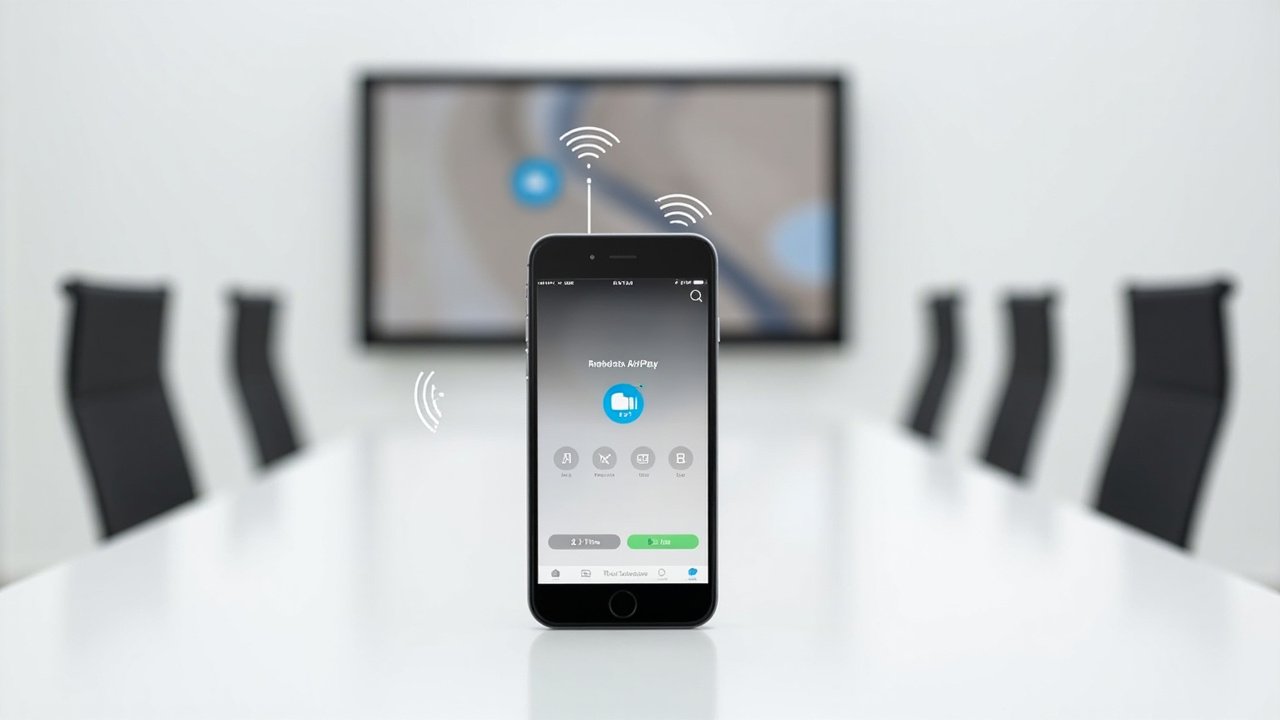
In meetings, teaching, and presentation scenarios, Apple iPhone/iPad wireless screen mirroring has replaced traditional HDMI cables as the mainstream screen sharing method. Traditional wired connections are limited by cable length and interface compatibility, requiring time for debugging before each meeting. Wireless screen mirroring only requires the same network or a screen mirroring code to project the phone or computer screen onto the large display in real time.
Screen Mirroring Method 1: AirPlay (Native Protocol, No APP Required)
AirPlay is the native wireless display protocol built into Apple devices. Apple iPhone/iPad can initiate screen mirroring without installing any software. The specific steps for Apple iPhone/iPad to support AirPlay screen mirroring are as follows:
- Ensure the iPhone and the receiving device are connected to the same router
- Open the Control Center on the iOS device and tap "Screen Mirroring"
- Select the receiving device to start mirroring
Advantages of using AirPlay screen mirroring: Zero configuration, zero waiting – no need to download an APP, usable once connected to the network. Suitable for temporary visitors or leaders who need to quickly initiate a presentation.
Screen Mirroring Method 2: BJCast APP (Suitable for No Network or Complex Network Environments)
When the receiving device and the phone are not on the same network, you can choose QR code screen mirroring or screen mirroring code, and it works without an external network connection.
- Download the "BJCast" client from the App Store
- Ensure the phone and the receiving device are connected to the same router; the APP can automatically discover the receiving device
- Tap "Start screen mirroring"; in screen mirroring code mode, you can directly scan the QR code or enter the screen mirroring code
Applicable scenarios for screen mirroring code mode: enterprise intranet isolation, hotel rooms, temporary exhibition halls, and other network-restricted environments. All Zorsika screen mirroring receivers support the screen mirroring code mode.
Frequently Asked Questions
- Q: Does iPhone screen mirroring require the same WiFi?
A: Yes, the phone and the receiving device need to be connected to the same router, or the device supports AP hotspot mode. - Q: Is there a delay with iPhone screen mirroring?
A: The AirPlay protocol has a latency of less than 100ms, which is imperceptible in daily meetings and office use. - Q: Can iPhone mirror to multiple devices simultaneously?
A: Some BJCast models support multi-channel simultaneous screen mirroring. Please refer to the specific model specifications.
Zorsika Wireless Screen Mirroring Solution Recommendations
Zorsika offers a complete line of wireless screen mirroring products, compatible with four major protocols: AirPlay, Miracast, WiDi, and BJCast. No APP installation is required for screen mirroring, supporting 4K high-definition output and screen mirroring reverse control.
- Corporate Meeting Rooms: Recommended BJ62S (4K/screen mirroring reverse control/supports USB transmitter)
- Educational Scenarios: Recommended BJ66 multimedia collaboration system (supports group screen mirroring/16-way simultaneous display)
- Visitor/Temporary Screen Mirroring: Recommended WCB06 wireless meeting companion (Type-C plug and play, WiFi 6)
For customized solutions based on specific scenarios, please contact Zorsika sales for detailed quotations and specifications. Warranty policy: BJCast wireless screen mirroring receivers come with a 365-day warranty.